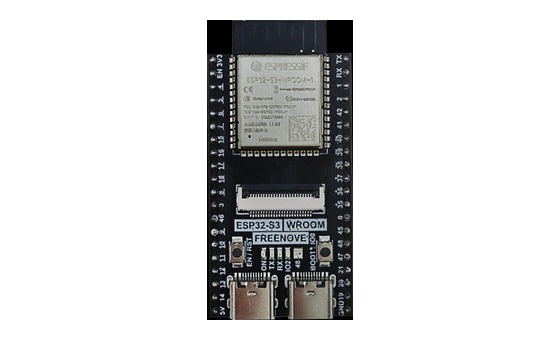
ESP32-S3 board
The brain — and today, the radio.
ESP32-S3 Lab · Day 27 of 30
Today the cable stops being the only path. The ESP32-S3's built-in Bluetooth Low Energy radio becomes a short-range text line — you type in Serial Monitor and the words land on your phone, then your phone answers back the same way.
TSK-DAY27-BLE
Hand this to an agent so it can pull the lesson packet and coach you step by step.
01 First, know the pieces
Just the board and its USB cable from the kit — plus your phone. Today's extra tool is a free app called LightBlue (iOS App Store or Google Play) that speaks BLE and lets you see exactly what the board broadcasts. Tap Define on anything unfamiliar — the answer opens as a field note you can read and dismiss without losing your place.
The brain — and today, the radio.
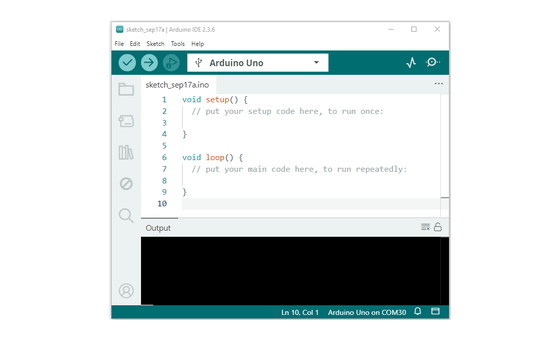
Uploads the sketch and opens Serial Monitor.
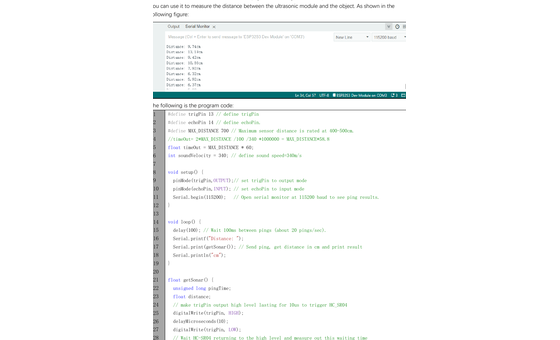
Sketch_20.1_BLE_USART.ino
02 One action at a time
Two ends today — the board end in Serial Monitor and the phone end in LightBlue. Tap each step as you go to keep your place; you can finish without opening a single field note.
On your phone, install the free LightBlue app (iOS App Store or Google Play), and turn Bluetooth on. (On Android, Serial Bluetooth Terminal also works if you already have it.)
Plug the ESP32-S3 into your computer with a data-capable USB cable.
Open Sketch_20.1_BLE_USART.ino in Arduino IDE — the BLE libraries ship with the ESP32 board package, so there is nothing extra to install.
Press Upload, then open Serial Monitor and set the baud rate to 115200.
Watch for Waiting a client connection to notify... — the board is now broadcasting its name.
In LightBlue, open the Scan page, swipe down to refresh, and tap ESP32S3_Bluetooth. BLE devices are opened inside a GATT app like this — the name never shows up in your phone's Settings→Bluetooth pairing list.
To hear the board, open the characteristic ending 0003, set Data Format to utf-string, and tap Subscribe.
Type a line in Serial Monitor's send box and press Enter — it appears on the phone.
To talk back, open the characteristic ending 0002, set Data Format to utf-string, type a message, and tap Write.
Watch your message appear in Serial Monitor.
03 Read just enough code
The sketch is about seventy lines; the parts that matter fit here. A helper called setupBLE() builds the radio's public face — it creates the service with a write characteristic for phone→board and a notify characteristic for board→phone, then starts advertising. The BLE libraries ship with the ESP32 board package, so it compiles as-is.
#include "BLEDevice.h"
#include "BLEServer.h"

#define SERVICE_UUID           "6E400001-B5A3-F393-E0A9-E50E24DCCA9E"
#define CHARACTERISTIC_UUID_RX "6E400002-B5A3-F393-E0A9-E50E24DCCA9E"
#define CHARACTERISTIC_UUID_TX "6E400003-B5A3-F393-E0A9-E50E24DCCA9E"

void setup() {
  Serial.begin(115200);
  setupBLE("ESP32S3_Bluetooth");
}

void loop() {
  long now = millis();
  if (now - lastMsg > 100) {
    if (deviceConnected&&rxload.length()>0) {
        Serial.println(rxload);
        rxload="";
    }
    if(Serial.available()>0){
        String str=Serial.readString();
        const char *newValue=str.c_str();
        pCharacteristic->setValue(newValue);
        pCharacteristic->notify();
    }
    lastMsg = now;
  }
}setupBLE("ESP32S3_Bluetooth")The helper shown in the full sketch. It creates the service with a write characteristic for phone→board and a notify characteristic for board→phone, then starts advertising this name. #define CHARACTERISTIC_UUID_RX …UUIDs are the fixed names each side looks up to find the right data lane — this trio is the widely adopted Nordic UART set. Serial.println(rxload)Whatever the phone wrote arrives in rxload and prints straight to Serial Monitor. pCharacteristic->notify()Pushes whatever you typed in Serial Monitor out over the radio to every subscribed phone. Optional side path · no wiring
_UART_UUID = bluetooth.UUID("6E400001-B5A3-F393-E0A9-E50E24DCCA9E")

p = BLESimplePeripheral(ble)
p.on_write(on_rx)

print("Please use LightBlue to connect to ESP32S3.")

tx_data = input("Enter anything: ")
p.send(tx_data)
_UART_UUID = bluetooth.UUID("6E400001-…")The same Nordic UART service UUID as the Arduino sketch — the phone app sees the same service either way.p.on_write(on_rx)Registers the function that runs whenever the phone writes — the Python side of the pass-through.Copy ble_advertising.py onto the board alongside BLE.py — the script imports it. This version broadcasts the shorter name ESP32S3, so scan for that in LightBlue. If MicroPython isn't set up yet, skip this — it should never block the Arduino-first day.
04 Understand, don't memorise
BLE is how a small device lets a phone find it and talk to it over the air, with no cable and no pairing menu. Everything the board offers is laid out as a service, and a service holds characteristics — the actual value slots each side reads or writes. A characteristic is a named mailbox with a unique ID, and today's service holds two of them, one lane each way. This is the same model your fitness band and any wireless sensor use to reach your phone.
From boot the sketch broadcasts the name ESP32S3_Bluetooth on the radio, so any phone within range can find it.
A BLE scanner app like LightBlue listens for those broadcasts and lists the board, which is why it shows up inside the app and never in the phone's own Bluetooth settings.
Tapping the board opens a connection and reads its menu: one service, found by its UUID, holding the characteristics on offer.
Text the phone writes into the characteristic ending 0002 lands in the sketch and prints to Serial Monitor.
Text typed in Serial Monitor is pushed out through the characteristic ending 0003 to every phone that subscribed.
advertise → discover → connect → write in / notify out through a characteristic
The characteristic is the thing you actually read or write — a named slot inside the service. This service has two: an RX slot the phone writes into, and a TX slot the board notifies through. Two one-way slots make the round trip.
A UUID is a name long enough that no other gadget will ever share it by accident, the way a port number names a service. This trio is the Nordic UART set — a convention so common that serial-over-BLE apps recognise it on sight.
A notify slot only sends to phones that asked for it. Subscribing is how the phone says keep me posted; until it does, the board's messages have nowhere to land.
05 Know it worked
Success and recovery sit side by side, so you never have to go hunting when something looks off.
The waiting line prints once at start-up. After you connect and write from the phone, each message appears as its own line — a stray `Test` right after connecting is just the sketch's starter value.
06 Make the idea yours
You've traded a line each way; now slow down and see the structure that made it work. Connect from the scanner app, look at the service the board offers, then push text through each characteristic yourself. It fits inside today's 25 minutes.
With the board connected in LightBlue, open its service and read the list of characteristics. One ends 0002 and is marked Write; one ends 0003 and is marked Notify. Those two slots are the whole conversation, and the property on each tells you which way it carries data.
Subscribe to the 0003 characteristic, type a line in Serial Monitor, and watch it arrive on the phone. Then write a message into the 0002 characteristic and watch it land in Serial Monitor. You've now sent text both ways through the slots by hand.
07 Learn it with a hand on the tiller
Every lesson ships with a code and a machine-readable packet, so an agent can guide you with full context.
TSK-DAY27-BLE
How the agent should behave: teach the BLE model plainly — the board advertises, the phone discovers and connects, then the two exchange data through characteristics — while working one end at a time, board side in Serial Monitor and phone side in LightBlue. Confirm the waiting line before touching the app, and treat subscribe, data format, and reset-after-disconnect as the first checks.
Keep your place
Mark it complete — it shows on your course map, and your place is saved on this device.